Summarize PDFs & YouTube Videos With AI: NotebookLM Guide
Summarize 100-page PDFs, contracts, textbooks, and two-hour YouTube lectures without invented facts by matching each file to the right workspace: Google NotebookLM for clickable citations, Audio and Video Overviews, and Quizzes; Anthropic Claude for visual PDF tables under 100 pages; Google Gemini for single public videos; and Perplexity Projects for persistent folders.
Jump to a section
- Why Generic Chatbots Hallucinate on Long PDFs and 2-Hour Videos
- Google NotebookLM Citations, Audio Overviews, and Video Overviews
- Gemini vs Claude vs ChatGPT vs Perplexity: Real PDF Limits
- Fixing Scanned PDF Text-Recognition (OCR) Traps and Page Mismatches
- Five-Minute Verification Workflow to Catch Confident AI Bluffs
- 3-Step Active-Recall Study Routine From Raw Files to Practice Quiz
Why Generic Chatbots Hallucinate on Long PDFs and 2-Hour Videos
Pasting a messy transcript or uploading a 120-page PDF into a regular chat window invites skipped chapters and invented citations. Moving to source-grounded workspaces—led by Google NotebookLM, Anthropic Claude visual PDF analysis, and Google Gemini YouTube connections—locks summaries to clickable quotes, exact timestamps, and verifiable pages.
Ordinary chatbots blend your uploaded file with general internet training memory. Whenever a scan looks blurry or a two-hour lecture drags on, the model fills missing gaps from statistical guesswork instead of admitting it cannot read paragraph four.
If you have ever renamed a file semester_biology_readings_scan.pdf and dropped it straight into a generic chat box, you have probably seen that confidence firsthand. Ask about a penalty fee, and an ungrounded chatbot can invent Clause 19 so smoothly that you only notice the fiction when your landlord or professor asks where you read it.
According to Stanford HAI’s 2026 AI Index Report, 4 in 5 university students already use generative AI for coursework, yet only 6% of teachers say usage guidelines are clear. That same report highlights AI’s jagged frontier: systems capable of winning gold in international math competitions still read simple analog clocks correctly only 50.1% of the time.
Wharton professor Ethan Mollick underscores in One Useful Thing’s practical AI guide that reliability comes from matching your task to the right product system rather than obsessing over model version numbers. Before uploading long packets, compare the best free AI tools and their rolling daily limits so you do not get locked out mid-chapter.
When a dense syllabus or contract requires multi-step logic checks instead of quick recaps, learn when to switch from fast chat to Thinking models and Deep Research. Separating open-ended chat from dedicated file tools prevents most factual slips before they start.
Google NotebookLM Citations, Audio Overviews, and Video Overviews
Combining two-hour YouTube lectures with PDFs, slides, and personal notes into study guides, mind maps, Audio Overviews, and narrated Video Overviews works best inside Google NotebookLM. Free notebooks hold up to 50 sources at 500,000 words each, anchoring every claim to clickable citations in your uploaded material.
 Kevin Stratvert 1:11
Per Google’s official NotebookLM YouTube and audio announcement, adding public YouTube URLs alongside PDFs and lecture slides creates an indexed workspace where answers cite exact transcript moments and document passages. Clicking any numbered citation opens the exact passage on the left panel so you verify quotes in two seconds.
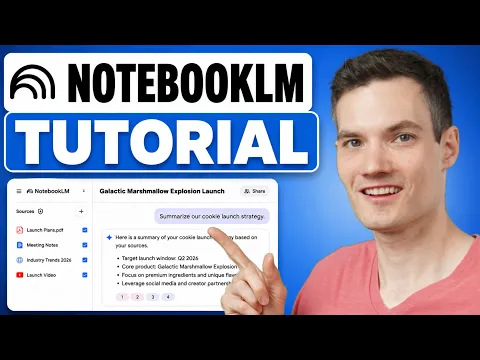
Educator Kevin Stratvert demonstrates in his walkthrough how building one notebook per class or project unlocks visual mind maps that organize scattered readings before you write a word. Instead of skimming twenty separate tabs, you ask cross-source questions comparing where a lecturer disagrees with a textbook chapter.
- Audio Overviews across three formats: According to Google’s NotebookLM Audio Overview Help Center, Audio Overviews run in the background and let you choose a two-host Deep Dive discussion, a single-speaker Brief under two minutes, or a Critique format that points out gaps.
- Video Overviews as narrated slides: As announced in Google’s NotebookLM Studio upgrades post, Video Overviews turn dense PDFs into narrated slide explainers that pull diagrams, quotes, and figures straight from your documents while letting you save multiple Studio outputs per notebook.
- Built-in Flashcards and Quizzes: Per Google’s NotebookLM Flashcards and Quizzes guide, the Studio panel generates background interactive quizzes and flashcards at easy, medium, or hard difficulty tailored by custom prompt instructions.
- Source checkboxes and generous limits: Google’s NotebookLM source limits documentation confirms free users get up to 50 sources per notebook and 500,000 words or 200 MB per file, with checkboxes to isolate specific PDFs in chat.
Notice one subtle quirk inside NotebookLM Studio: updating or deleting a source in the left panel does not automatically rewrite Audio Overviews, Video Overviews, or quizzes you already generated. Whenever a syllabus or contract receives an addendum, regenerate affected Studio summaries and quizzes instead of trusting yesterday’s recording.
Gemini vs Claude vs ChatGPT vs Perplexity: Real PDF Limits
No single AI assistant wins every document or video test because each platform sets hard ceilings on page rendering, file count, and video length. Checking Claude’s 100-page visual cutoff, Gemini’s 10-file prompt limit, ChatGPT’s PDF-versus-DOCX handling, and Perplexity Projects before uploading saves wasted quotas.
| AI Study & Summary Tool | Best Input Format | Upload & Page Limits | Visual & Citation Behavior | Blind Spot |
|---|---|---|---|---|
| Google NotebookLM | PDFs, Google Docs, audio, public YouTube URLs | 50 sources free; 500k words or 200 MB/file | Clickable inline citations; Audio & Video Overviews | Only checks sources you add |
| Anthropic Claude | PDFs with charts, tables, diagrams, or contracts | 20 files/chat (500 MB); 1,000 pages (30 MB Projects) | Text + rendered page images up to 100 pages | Text-only on pages 101–1,000 |
| Google Gemini Apps | Single public YouTube link or 10 mixed files | 10 files/prompt; video 5 min free / 1 hr Pro | Direct chat Q&A over YouTube and Drive files | Needs “Keep Activity” on; skips private video |
| ChatGPT (Vision) | Single PDFs, spreadsheets, and slide exports | Daily free file caps; expanded Plus uploads | Text + page images for PDFs; text-only DOCX/TXT | Charts in DOCX vanish unless saved as PDF |
| Perplexity Projects | Persistent study folders plus live web lookup | Daily free upload caps; higher $20/mo quotas | Folder memory paired with live open-web links | Built for open-web work; skip private IDs |
In everyday practice, Google Gemini Apps shine when you paste a single public YouTube URL mid-conversation or bundle mixed files from Google Drive. Per Google’s Gemini Apps YouTube guide and Gemini file upload documentation, YouTube integration requires “Keep Activity” to be enabled, while direct video file uploads stop at five minutes on free accounts and expand to one hour on paid AI Pro plans.
Anthropic Claude handles dense visual layouts—especially architecture blueprints, financial PDFs, and scientific figures—better than text-only readers, provided you stay under 100 pages. According to Claude’s official file upload limits, PDFs from 101 to 1,000 pages fall back to text extraction only, quietly skipping diagrams and scanned charts.
Perplexity Projects fills a different gap when your PDFs reference changing external rules—like tax deadlines or product benchmarks. As Perplexity’s Projects overview explains, Projects maintain persistent folders so every follow-up search checks your uploaded syllabus against live public web sources.
Fixing Scanned PDF Text-Recognition (OCR) Traps and Page Mismatches
Two silent formatting traps break AI document summaries: crooked smartphone scans with poor contrast, and the gap between printed book numbers and logical PDF viewer page numbers. Knowing how vision models render PDF pages—and why DOCX uploads drop visual charts—eliminates misquoted clauses and wrong chapter citations.
Modern vision-capable AI assistants do not merely pull raw hidden text from a PDF. Per Anthropic’s Claude PDF support documentation, Claude converts each page into an image paired with extracted text so it reads tables, stamps, and diagrams directly.
OpenAI’s File Inputs guide reveals a crucial format difference people miss: vision models extract both text and rendered page images from PDF files, whereas DOCX, PPTX, and TXT files extract text only. If a colleague sends a Word report packed with screenshots of budget tables, save it as a PDF before asking ChatGPT to audit the numbers.
- Always prompt with logical PDF viewer page numbers: A textbook printed as Page 14 in the corner is often page 26 on your PDF toolbar because of covers and prefaces; Anthropic explicitly advises referencing logical viewer page numbers in prompts.
- Rotate sideways scans upright and strip passwords: Tilted smartphone photos, dark shadows, and encrypted PDFs trigger reading failures or garbled OCR (scanned-text) tables; rotate pages upright and unlock encryption before uploading.
- Split 150-page files into 40-to-80-page chapters: Keeping each chunk under 100 pages preserves Claude’s hybrid text-plus-vision mode and prevents dense multi-column tables from hitting message-length limits prematurely.
- Watch out for non-selectable text layers: Scanned PDFs created by older office copiers often contain garbled background OCR text from 2009; asking the model to inspect visual layout rather than trusting raw copy-paste catches bad digits.
Think of visual PDF reading like handing a sharp intern a clean printout instead of a blurry photocopy stuffed upside down in a folder. Clean upright PDFs take thirty seconds to prepare and save twenty minutes of arguing with a hallucinated summary.
Five-Minute Verification Workflow to Catch Confident AI Bluffs
Even source-grounded tools occasionally misread a footnote, summarize an outdated attachment, or smooth over a missing clause with confident phrasing. Running a five-minute verification routine—testing unstated gaps, auditing one logical page directly, and checking whether saved Studio summaries match your latest files—catches silent errors before exams or client calls.
Because Stanford HAI’s data shows frontier systems still stumble on simple visual or rule-edge tasks despite impressive high-level reasoning, treat every first summary as an unverified draft. Never forward a summarized contract clause or medical dosage without opening the primary page.
- The Unstated-Gap Probe: Ask the assistant to list three questions your PDF or video fails to answer; models forced to admit missing evidence stop inventing bridging details.
- The One-Footnote Spot Audit: Pick one specific dollar figure, deadline, or citation inside the summary, verify its logical PDF viewer page number or NotebookLM transcript jump, and confirm the numbers match verbatim.
- The Updated-Source Check in NotebookLM: Whenever you swap a newer PDF draft into an existing notebook, regenerate Audio Overviews, Video Overviews, and Quizzes because saved Studio outputs stay locked to previous sources.
If your PDF contains heavy tabular accounting logs or multi-tab financial tables rather than narrative chapters, export CSV data and follow our guide to clean messy spreadsheet exports and check totals without formulas. To track feature rollouts and quota changes across these platforms, check our AI Market Radar for recent NotebookLM and pricing updates.
3-Step Active-Recall Study Routine From Raw Files to Practice Quiz
Passive reading of AI-generated bullet summaries creates a comforting illusion of mastery that disappears during real exams or client negotiations. Pairing NotebookLM source synthesis, logical-page verification, and active-recall quiz prompts turns long PDFs and two-hour YouTube lectures into durable understanding in twenty minutes.
Bundle PDFs and YouTube lectures in one NotebookLM notebook
Create a notebook at notebooklm.google.com, add clean chapter PDFs under 200 MB plus public YouTube lecture URLs, and generate a Mind Map or narrated Video Overview to map key themes visually.
Using only the uploaded sources in this notebook, list the 5 core arguments across these PDFs and YouTube lectures. Include exact inline citations for every point and flag any disagreements between the video and the text.Verify figures, tables, and clauses by logical PDF page number
When checking lease clauses, financial statements, or dense technical textbooks in Claude or NotebookLM, require logical PDF viewer page numbers and force explicit NOT STATED flags.
Examine logical PDF viewer pages [X to Y] of the attached PDF. Extract every numerical threshold, deadline, or table figure verbatim, list the exact PDF viewer page number next to each item, and write NOT STATED if a value is missing.Run an active-recall quiz before listening to a Brief Audio Overview
Skip passive rereading: generate a Medium or Hard Studio Quiz in NotebookLM—or run one-question-at-a-time active recall in chat—and follow up with a 2-minute Brief Audio Overview on your weak spots.
Quiz me on the uploaded study materials with 6 scenario-based active-recall questions, asking one question at a time. Wait for my reply before grading, then explain what I missed using cited quotes from my sources.Save any missed quiz questions in a dedicated NotebookLM note so your next audio review focuses strictly on those gaps. If you are new to these workflows, build a calm anti-FOMO AI routine from scratch, and read our primary-source verification methodology to inspect how we audit every tool limit.
Frequently asked questions
Can Google NotebookLM summarize a 2-hour YouTube video and a PDF at the same time?
Yes. Free NotebookLM accounts accept up to 50 sources per notebook—combining public YouTube URLs, PDFs up to 500,000 words or 200 MB, Google Docs, and Slides—and anchor every answer in clickable inline citations tied to exact transcript lines and PDF passages.
What is the difference between NotebookLM Audio Overviews and Video Overviews?
Audio Overviews create podcast-style discussions (Deep Dive, under-2-minute Brief, or Critique) for listening on the go, while Video Overviews build narrated slide explainers pulling diagrams, quotes, and numbers directly from your uploaded documents.
Why does Claude stop reading charts or diagrams in a 150-page PDF?
Anthropic's documentation specifies that Claude analyzes both text and visual page images only for PDFs of 100 pages or fewer. Between 101 and 1,000 pages, Claude switches to text-only processing—so split large visual books into chapters under 100 pages first.
Why does an AI give the wrong page number when summarizing my PDF?
Most PDFs carry two page counters: the printed number in the corner and the logical page number shown in your PDF viewer's toolbar (which counts covers and prefaces). Always ask Claude or ChatGPT to cite logical PDF viewer page numbers.